
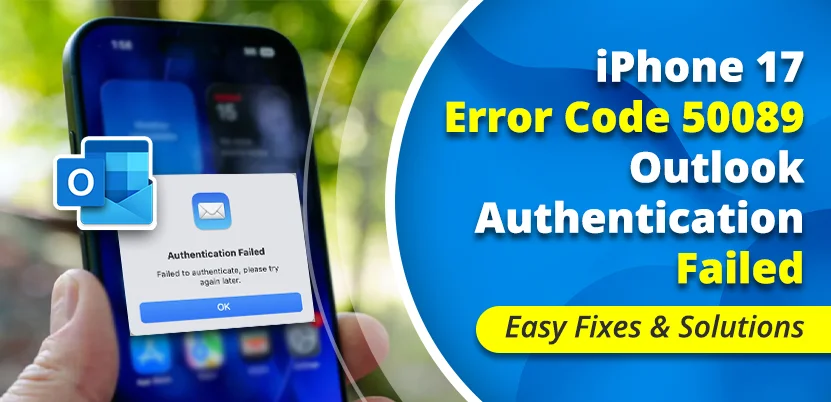
iPhone 17 Outlook Error Code 50089 “Authentication Failed”: What It Means and How to Fix It
You open Outlook on your iPhone 17. You enter your email, your password, maybe approve a sign-in in Microsoft Authenticator, and then the app stops with “Error Code: 50089” and an authentication failed message. Try again, and you land back in the same place.
This error looks scary, but it is actually one of the simpler Microsoft sign-in errors to understand. It is a timing problem, not a “your account is hacked” problem and not an iPhone 17 problem. Below you will find what it means in plain words, the quickest fixes first, and what to do if you are stuck in an Outlook and Authenticator loop on a new phone.
What error 50089 actually means
Behind the number is a Microsoft sign-in code, AADSTS50089, described by Microsoft as “Flow token expired – Authentication Failed.“ Microsoft Q&A: Error Code 50089 Microsoft’s guidance for it is simple: the user should try signing in again.
In everyday language: when you start signing in, Microsoft hands your phone a short-lived pass (the “flow token”) that keeps the steps of one sign-in together. If that pass runs out before you finish, Microsoft rejects the attempt. Common ways this happens:
- You took too long to approve the Authenticator prompt or type the verification code. A Microsoft Q&A response notes that a one-time code has about a 10-minute window, after which the flow token is treated as expired.
- The sign-in screen sat open for a while before you continued.
- Your saved session or refresh token in Outlook had expired or been revoked, so the app has to ask you to sign in again from scratch.
- Your iPhone’s clock or connection interrupted the handshake.
Microsoft’s moderators describe this error as transient. It relates to the lifetime of a token and does not mean a permanent block on your account. One more detail that helps with the “IMAP” part of searches: error 50089 comes from Microsoft’s own sign-in service (Microsoft Entra ID, formerly Azure AD). If you add a Gmail or Yahoo account to Outlook, you would see a different error, so this one tells you the problem is with a Microsoft account.
Quick fixes: try these first (about five minutes)
1. Start a completely fresh sign-in
Because the error means the old attempt expired, the cleanest fix is a new one:
- Swipe up and close Outlook and Microsoft Authenticator.
- Reopen Outlook and tap Add Account.
- Type your email and password and approve the Authenticator prompt right away, within a minute or so.
Do not leave the number-matching screen waiting while you do something else. That alone causes many 50089 errors.
2. Check your date and time
Go to Settings > General > Date & Time and turn on Set Automatically. Microsoft’s own Q&A guidance for this error lists correct date and time as a check, since tokens depend on accurate clocks. Apple Support: Change date and time on iPhone
3. Check your connection
Switch between Wi-Fi and cellular data. Turn off any VPN for a moment. A flaky connection can break the sign-in mid-step. If Outlook shows connection errors rather than a sign-in code, this guide on Outlook cannot connect to server walks through the usual network causes.
4. Update everything
Open the App Store and update Outlook and Microsoft Authenticator, then install any pending iOS update in Settings > General > Software Update. Microsoft staff and community answers repeatedly suggest updating both apps and iOS first.
5. Check that Authenticator notifications are on
Open Settings > Notifications > Authenticator and make sure alerts are allowed. If the prompt never arrives, you cannot approve in time, and the flow token expires while you wait.
Next level: reset the account inside Outlook
If the quick fixes do not work, the account entry stored in Outlook may be damaged. Outlook for iOS has two options, from lightest to strongest:
Reset Account
- In Outlook, tap your profile picture or open Settings.
- Tap your account.
- Tap Reset Account. Outlook restarts and re-syncs.
Microsoft community moderators describe this as the lighter step: it keeps the connection and forces a new sync of items and settings.
Remove and re-add the account
- Go to Settings, tap the account, then Delete Account and choose Delete From This Device.
- Close Outlook, restart your iPhone, and reopen the app.
- Tap Add Account and sign in again.
This only removes the copy on the phone. Your mailbox stays on Microsoft’s servers.
Last resort: reinstall Outlook
Delete the Outlook app, restart the iPhone, install Outlook from the App Store, and add the account again. If the app misbehaves in other ways too, this broader checklist for when the Outlook app is not working covers more situations.
On a new iPhone 17? The Authenticator loop is probably your real problem
This is the part most guides skip, and it matters because a lot of people see 50089 right after switching phones. The iPhone 17 itself is not the cause, but a new phone often means a fresh Microsoft Authenticator install with no accounts in it. That leads to a loop: Outlook says “approve in Authenticator,” Authenticator asks you to sign in, and that sign-in asks for approval in Authenticator. Several Microsoft Q&A threads describe exactly this on iPhone, and the sign-in times out in the middle.
If you still have your old phone
- On the old phone, open Authenticator, go to Settings, and turn on iCloud backup.
- On the new iPhone, make sure you are signed in to iCloud and that iCloud Drive, iCloud Keychain and iCloud Backup are all on.
- Install Authenticator, and before signing in to anything, tap Restore from backup (or Begin recovery).
- Sign in with the same personal Microsoft account you used as the recovery account.
Two important limits from Microsoft’s documentation: backups made on iPhone can only be restored on iPhone, and for work or school accounts only the account name is restored. You still have to sign in again and may need to scan a QR code from your organization.
If you no longer have the old phone
- Look for another way to verify. On the verification screen, tap “I can’t use my Microsoft Authenticator app right now” or a similar link, then use a text message, phone call or backup email if you added one.
- Personal account (Outlook.com, Hotmail, Live): use Microsoft’s account recovery with your recovery email or phone number.
- Work or school account: only your administrator can reset your verification. They can set your account to require re-registration of multifactor authentication in the Microsoft Entra admin center, and you will then be guided through setting up Authenticator again.
Microsoft’s support pages say that if the backup account is permanently lost, even support agents cannot recover Authenticator’s stored data. In that case each account has to be recovered one by one and re-added.
If you are in a loop and the number never shows
Close Outlook and Authenticator completely. Reopen Authenticator first, check whether the pending approval shows there, then return to Outlook. Some Microsoft answers suggest reinstalling both apps if the loop continues. Signing in to your account on a computer’s browser first can also help confirm that your verification method still works.
Personal account or work account? It changes who can fix it
| Account type | What you can fix yourself | When you need someone else |
| Personal (Outlook.com, Hotmail, Live) | Fresh sign-in, reset or re-add account, update apps, restore Authenticator from iCloud, use account recovery | Only Microsoft account recovery if you lost all verification methods |
| Work or school (Microsoft 365) | Fresh sign-in, reset or re-add account, update apps | Your IT admin if Authenticator was lost or if the error keeps returning |
If the error keeps coming back: why it may be a policy, not your phone
Sometimes you can sign in, then 50089 reappears every day or every few days. For work and school accounts, that is often a setting on the organization side. Microsoft’s Q&A guidance says administrators may need to review Conditional Access policies, token lifetimes and your MFA configuration. Some points that explain the pattern:
- Sign-in sessions have a limited lifetime. Microsoft says a session token that is not used within its maximum inactive time is treated as expired and is no longer accepted, and you are asked to sign in again.
- Conditional Access can force more frequent sign-ins, overriding default session behavior.
- In the Entra sign-in logs, you may see a failed 50089 entry followed by a successful sign-in seconds later, which happened in one reported case where a user simply re-entered their password. That pattern is usually a normal token refresh, not an attack.
Tip for your admin: when you contact them, send a screenshot of the error screen. It includes the Request ID, Correlation ID and timestamp, which let them find your exact sign-in attempt in the logs. If the real issue is that Outlook asks for your password again and again, our guide to Outlook keeps asking for password explains that related pattern.
What if you sign in, but mail will not sync?
Once the error goes away, a separate sync problem can show up, especially if your account uses Exchange ActiveSync or is managed by your company. That is a different issue from 50089. If you see sync codes instead, take a look at this walkthrough for the Outlook sync error 80004005 with Exchange ActiveSync. Also note that a few user threads mention that corporate setups using older basic authentication, or mismatched domain settings, can break sign-in for the Outlook apps while the built-in iPhone Mail app still works. That is another reason to involve your IT team if you use a work account.
What not to do
- Do not keep tapping “try again” over and over. Each retry is a new sign-in, but repeated failed sign-ins can trigger other protections.
- Do not click sign-in links from random emails or websites that claim to fix error 50089. Only use the Outlook app, the Authenticator app, or official Microsoft pages.
- Do not delete Authenticator before you are sure how you will get back in. For work accounts, removing it may require IT help to re-register.
- Do not share verification codes with anyone who contacts you.
After you are back in
When sign-in works again, send yourself a test email and check that Authenticator and Outlook both stay signed in. If alerts do not arrive afterward, this guide on Outlook notifications not working will help you check the iPhone notification settings.
Frequently asked questions
What does Outlook error code 50089 mean?
It means the sign-in session, called a flow token, expired before authentication finished. Microsoft’s own description is “Flow token expired – Authentication Failed,” and the usual advice is to try signing in again.
Is error 50089 caused by my iPhone 17?
No. It is a Microsoft sign-in timing error. It appears on iPhones, Macs and PCs. What changes with a new iPhone is that you usually need to set up Authenticator again, which can trigger the loop that leads to the error.
Does this error mean my account was hacked?
Not by itself. Microsoft community answers describe it as transient and related to token lifetime. If you also see sign-in prompts you did not start, or messages you did not send, change your password and review your account’s recent activity.
Why does Outlook keep failing even though my password is right?
Because the problem is not the password. It is the expiry of the sign-in session, a stuck Authenticator step, or an old stored session in Outlook. Resetting the account or signing in fresh usually fixes it.
How do I reset MFA for Outlook?
For a personal account, use your other verification methods or Microsoft account recovery. For a work or school account, your administrator resets it in the Microsoft Entra admin center, and you set up Authenticator again at the next sign-in.
Will removing my account from Outlook delete my emails?
No. Deleting from the device removes only the local copy. Your messages remain in your mailbox on Microsoft’s servers.
Do I need an app password for Outlook on iPhone?
No. The Outlook app for iOS signs in with Microsoft’s modern authentication. App-specific passwords are only for older apps that cannot use it.
The short version
Error 50089 means your sign-in expired before it finished. Close Outlook and Authenticator, check your date and time, update the apps, and start a fresh sign-in that you complete quickly. If that fails, use Reset Account, then remove and re-add the account. If you just got a new iPhone 17, restore Authenticator from iCloud before signing in, or ask your administrator to reset your MFA if it is a work account. If the error keeps returning on a work account, send your IT team the Request ID and Correlation ID from the error screen.