
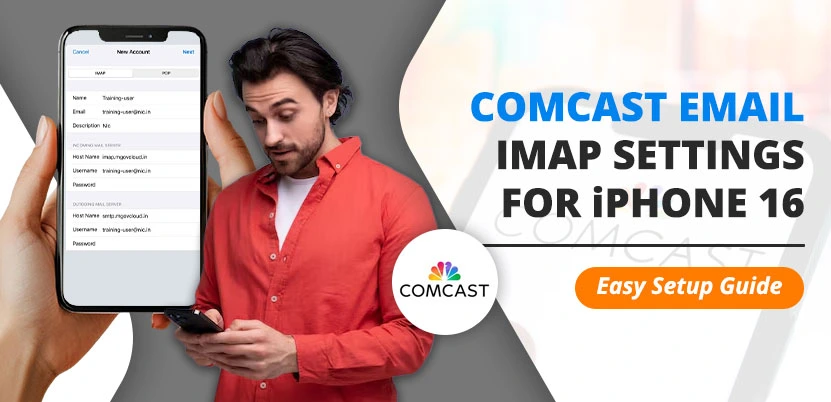
Comcast Email IMAP Port Settings for iPhone 16
If you want to add your Comcast.net email to the Mail app on an iPhone 16, you need the correct IMAP and SMTP server settings. For incoming mail, use imap.comcast.net, port 993, and SSL. For outgoing mail, use smtp.comcast.net, port 587, and TLS or SSL/TLS encryption.
Xfinity recommends using IMAP because it keeps your email, folders, and changes synchronized across your iPhone and other devices. Before starting, make sure that you know your complete Comcast.net email address and current Xfinity password.
Comcast Email Settings for iPhone 16
Use the following settings when the iPhone asks for the incoming and outgoing mail server information.
Incoming Mail Server Settings
- Account type: IMAP.
- Host name: imap.comcast.net.
- Username: Your complete Comcast.net email address.
- Password: Your Xfinity email password.
- IMAP port: 993.
- SSL: On.
Outgoing Mail Server Settings
- Host name: smtp.comcast.net.
- Username: Your complete Comcast.net email address.
- Password: Your Xfinity email password.
- SMTP port: 587.
- Encryption: TLS. Use SSL if TLS is not shown.
- Authentication: Your Comcast.net email address and password.
Xfinity also lists port 465 as an alternative SMTP port for some email applications. Start with port 587 and use port 465 only if Xfinity or the Mail app requires it. Do not use port 25 because Xfinity does not support it for email submission.
How to Add Comcast Email to iPhone 16
To add your Comcast email account to the Mail app on an iPhone 16, follow the directions described below. The names of some options can vary slightly according to the iOS version installed on your phone.
- At first, open the Settings application on your iPhone 16.
- Thereafter, scroll down and tap Apps.
- Tap Mail.
- Select Mail Accounts.
- Tap Add Account.
- Select Other or Add Other Account.
- Tap Add Mail Account or Mail Account.
- Enter your name, complete Comcast.net email address, password, and an account description.
- Tap Next.
- Select IMAP if the iPhone asks you to choose between IMAP and POP.
- Enter the incoming and outgoing server details shown above.
- Tap Next.
- Wait while the iPhone verifies the account.
- Select the Mail option and tap Save.
Apple explains that less-common email providers may need to be added manually by entering the incoming and outgoing server information.
After completing the setup, open the Mail application and send a test message to another email address. Also send an email to your Comcast address to check whether the iPhone can receive messages.
What to Do If iPhone Cannot Verify the Account
Sometimes, the iPhone may show a message saying that it cannot verify the account information. For additional troubleshooting, see our guide on Comcast email not working.
This can happen because of an incorrect password, a wrong server name, missing SMTP details, or third-party access settings.
- Check that the email address is written correctly.
- Make sure that the password works on the Xfinity webmail page.
- Confirm that the incoming server is imap.comcast.net.
- Confirm that the IMAP port is 993.
- Make sure that SSL is turned on for the incoming server.
- Confirm that the outgoing server is smtp.comcast.net.
- Use SMTP port 587 with TLS or SSL/TLS encryption.
- Enter your complete Comcast.net email address as the username for both servers.
- Enter the password under the outgoing mail server too, if the iPhone shows that field.
- Restart the iPhone and try the setup again.
Xfinity says that third-party email access may need to be allowed through Xfinity Email settings before a Comcast.net account can be added to an email application.
Allow Third-Party Email Access in Xfinity
If the Mail app continues to reject the Comcast account, sign in to your Xfinity Email web portal and check whether access for third-party email programs is allowed.
- Open the Xfinity Email website in a browser.
- Sign in with your Xfinity ID and password.
- Open the email settings.
- Find the option related to third-party email programs or third-party access.
- Allow access if the option is disabled.
- Return to the iPhone 16 Mail settings and try adding the account again.
The exact location and wording of this option may change. Do not enable an option through an unofficial website or give your Xfinity password to another person.
How to Change Comcast IMAP Port on iPhone 16
If the Comcast account is already added but incoming messages are not working, check the IMAP port and SSL setting.
- At first, open Settings.
- Tap Apps and then select Mail.
- Tap Mail Accounts.
- Select your Comcast account.
- Tap the account again to open the account details.
- Select Advanced if it is available.
- Check that the incoming server port is 993.
- Make sure Use SSL is turned on.
- Return to the previous screen and open the outgoing SMTP settings.
- Check that the outgoing server is smtp.comcast.net and the port is 587.
- Save the changes and open Mail again.
The exact menu can differ according to iOS. If the port cannot be edited, remove the account and add it again with the correct IMAP settings.
How to Change Comcast SMTP Port on iPhone 16
If you can receive emails but cannot send them, the outgoing SMTP settings may be incorrect.
- Open Settings on your iPhone.
- Go to Apps > Mail > Mail Accounts.
- Tap your Comcast account.
- Select the outgoing mail server or SMTP option.
- Tap smtp.comcast.net.
- Check that the server is turned on.
- Set the port to 587.
- Select TLS or SSL/TLS encryption if the option is available.
- Enter your complete Comcast.net email address as the username.
- Enter your current Xfinity password.
- Tap Done or Save.
If port 587 does not work, check Xfinity’s current instructions before trying port 465. The outgoing server must use an encrypted connection. Xfinity explains that non-encrypted outgoing settings may be blocked, which can prevent users from sending email.
Comcast Email Not Receiving on iPhone 16
If the iPhone is not receiving Comcast emails, follow the directions described below –
- Check that the IMAP server is imap.comcast.net.
- Confirm that the port is 993.
- Make sure SSL is turned on.
- Check that the complete email address is used as the username.
- Open the Xfinity webmail account and check whether new messages are available.
- Make sure Mail is enabled for the Comcast account on the iPhone.
- Open Settings > Apps > Mail > Mail Accounts > Fetch New Data and check the mail-fetching option.
- Switch between Wi-Fi and mobile data.
- Restart the iPhone.
- Remove and add the Comcast account again if the issue remains.
If messages are visible in Xfinity webmail but not on the iPhone, the issue is likely related to the Mail account settings, synchronization, or the phone’s connection. You can also check our guide on Comcast email not receiving emails for additional solutions.
Comcast Email Not Sending on iPhone 16
If you can receive messages but cannot send them, check the SMTP settings first.
- Check that the outgoing server is smtp.comcast.net.
- Use port 587 with TLS or SSL/TLS encryption.
- Check that the SMTP server is turned on.
- Enter your complete Comcast.net email address as the username.
- Enter the current password for the outgoing server.
- Check whether third-party access is allowed in Xfinity Email settings.
- Make sure that port 25 is not selected.
- Restart the iPhone and send another test message.
If the problem continues, see our guide on Comcast email not sending for additional troubleshooting steps.
Xfinity states that encrypted outgoing email settings are required for third-party applications, and it lists port 465 or 587 for outgoing mail.
Remove and Add Comcast Email Again
If the Comcast email account was added with incorrect settings, removing it and adding it again can create a fresh connection.
- Open Settings on the iPhone 16.
- Tap Apps and select Mail.
- Tap Mail Accounts.
- Select the Comcast account.
- Tap Delete Account or Remove Account.
- Confirm the action.
- Restart your iPhone.
- Return to Settings > Apps > Mail > Mail Accounts.
- Tap Add Account.
- Select Other and then Add Mail Account.
- Enter the correct Comcast IMAP and SMTP settings.
Before removing the account, confirm that important emails are available in Xfinity webmail. Removing an account from the iPhone does not delete the mailbox from Xfinity, but it removes the account and its downloaded messages from that device.
Should You Use IMAP or POP for Comcast Email?
Xfinity recommends using IMAP for Comcast.net email. IMAP keeps messages and folders on the server and synchronizes changes across your iPhone, computer, and other devices.
POP downloads messages to a device and can create problems when you check email from more than one device. If you still want to use POP, Xfinity lists pop3.comcast.net with port 995 and SSL enabled.
For most iPhone 16 users, IMAP is the better choice because it keeps email synchronized across devices.
Comcast IMAP Settings for Outlook 365
If you are trying to use Comcast email in Outlook 365, use the same Comcast server names but enter them inside Outlook’s account settings. Use imap.comcast.net, port 993, and SSL for incoming mail. For outgoing mail, use smtp.comcast.net, port 587 with TLS or SSL/TLS, or port 465 if Xfinity’s instructions require it.
Xfinity provides separate instructions for Outlook and Outlook 365 and requires encrypted outgoing mail settings.
Do not use Outlook.com server names for a Comcast.net account. Comcast email and Outlook.com are different email services.
Frequently Asked Questions
What is the Comcast IMAP port for iPhone 16?
The Comcast IMAP server is imap.comcast.net, and the IMAP port is 993 with SSL turned on. Use your complete Comcast.net email address as the username.
What is the Comcast SMTP port for iPhone 16?
The Comcast SMTP server is smtp.comcast.net. Start with port 587 and use TLS or SSL/TLS encryption. Xfinity also lists port 465 as an alternative for some email applications.
What are the Comcast IMAP settings for iPhone?
Use imap.comcast.net as the incoming server, port 993, SSL enabled, and your complete Comcast.net email address and password for authentication.
What is the Comcast email server name for iPhone?
Use imap.comcast.net for incoming IMAP email and smtp.comcast.net for outgoing SMTP email.
Should I use IMAP or POP for Comcast email on iPhone 16?
Use IMAP because it keeps email and folders synchronized across devices. Xfinity recommends IMAP for Comcast.net email.
Why is Comcast email not working on iPhone 16?
The account may have an incorrect password, incorrect IMAP or SMTP server settings, a disabled third-party access option, a missing SSL setting, or an outdated account configuration.
Why can I receive Comcast email but not send it?
The outgoing SMTP settings may be incorrect. Check that the server is smtp.comcast.net, the port is 587, encryption is TLS or SSL/TLS, and the complete Comcast.net email address and password are entered for authentication.
Why can I send Comcast email but not receive it?
Check that the incoming server is imap.comcast.net, the port is 993, and SSL is turned on. Also confirm that Mail is enabled for the account and that new messages are visible in Xfinity webmail.
Why does my iPhone say it cannot verify the Comcast account?
The iPhone may be unable to verify the account because of an incorrect password, wrong server name, missing port, disabled SSL, incomplete SMTP details, or restricted third-party access. Check each setting and try again.
Does Comcast email use SSL or TLS on iPhone?
Comcast IMAP uses port 993 with SSL enabled. For outgoing SMTP, Xfinity lists TLS and says to use SSL if TLS is not shown. Port 587 is the recommended starting point, while port 465 may be used if required by the email application.
Do I need to enable third-party access for Comcast email?
You may need to allow third-party email-program access in Xfinity Email settings before adding the Comcast.net account to the iPhone Mail app. Check Xfinity’s current instructions because the setting location may change.
What are the Comcast email settings for Outlook 365?
For Outlook 365, use imap.comcast.net with port 993 and SSL for incoming mail. Use smtp.comcast.net with port 587 and TLS or SSL/TLS for outgoing mail. Xfinity also lists port 465 as an alternative SMTP port.
Conclusion
By following the above-mentioned steps, you can add Comcast email to your iPhone 16 with the correct IMAP port settings. Use imap.comcast.net, port 993, and SSL for incoming mail. For outgoing mail, use smtp.comcast.net, port 587, and TLS or SSL/TLS encryption.
If the Comcast email account is not working, check the complete email address, current password, SSL option, third-party access, and outgoing SMTP authentication. Xfinity recommends IMAP because it keeps your email synchronized across multiple devices.
If the iPhone still cannot verify the account, remove the existing account and add it again using the latest settings from Xfinity. Always use Xfinity’s official support page for updated server details, and do not share your Xfinity ID, password, or verification code with anyone.
Disclaimer: This article is for general information. Primotechy is independent and is not affiliated with, endorsed by, or sponsored by Comcast or Xfinity.