
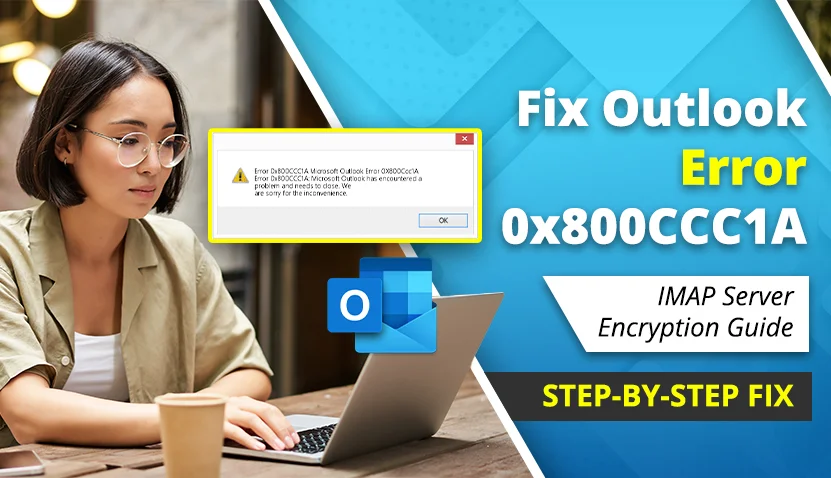
What Is Outlook Error 0x800CCC1A? IMAP Server Encryption Fixes
People experiencing Outlook Error 0x800CCC1A may be unable to send or receive emails through their Outlook account. This error usually appears when the encryption method selected in Outlook does not match the encryption method supported by the email server.
The error message may appear in the following form:
Your server does not support the connection encryption type you have specified. Try changing the encryption method.
In order to use the email account properly, individuals need to check the incoming and outgoing server settings, port numbers, and encryption method. For Outlook.com accounts, Microsoft lists outlook.office365.com as the IMAP server, port 993, and SSL/TLS encryption.
What Causes Outlook Error 0x800CCC1A?
The Outlook error 0x800CCC1A can occur due to different reasons. Some of the common causes are described below
- The wrong encryption method is selected in Outlook.
- The IMAP port number does not match the email provider’s settings.
- The SMTP port or encryption setting is incorrect.
- The incoming or outgoing mail server details are incorrect.
- The email provider has changed its security or authentication requirements.
- Outlook is using an outdated account configuration.
- Antivirus or firewall software is interfering with the encrypted connection.
- The Outlook application or Windows system requires an update.
- The email server certificate or security protocol is not being accepted correctly.
The exact settings can vary according to the email provider. Therefore, do not use the same IMAP or SMTP settings for every email account.
How Can I Fix Outlook Error 0x800CCC1A?
To fix the Outlook error 0x800CCC1A, follow the directions described below. Important Note: The exact steps depend on whether you are using Classic Outlook, which has a “File” tab at the top left, or New Outlook, which does not have a “File” tab and uses a gear icon for Settings.
1. Check the IMAP and SMTP Settings (For Classic Outlook)
If you are using Classic Outlook, you can manually check and edit your port numbers.
- At first, open the Microsoft Outlook application.
- Thereafter, click the File option in the top left corner.
- From the left side, tap Info and then select Account Settings.
- Again, tap Account Settings from the available options.
- After that, select the email account that is showing the error.
- Later, tap the Change option.
- From the account settings window, check the incoming and outgoing mail server details.
- Make sure that the IMAP and SMTP server names are entered correctly.
For Outlook.com, Microsoft lists the following IMAP details:
- IMAP server: outlook.office365.com
- IMAP port: 993
- IMAP encryption: SSL/TLS
- Authentication: OAuth2 or Modern Authentication, where required.
Microsoft lists the following SMTP details for Outlook.com:
- SMTP server: smtp-mail.outlook.com
- SMTP port: 587
- SMTP encryption: STARTTLS
- Authentication: OAuth2 or Modern Authentication, where required.
If you are using Gmail, Yahoo Mail, an office email account, or another email provider, check that provider’s official documentation for the correct settings.
2. Check the IMAP Encryption Method (For Classic Outlook)
- Open the email account settings in Microsoft Outlook as described above.
- Tap the More Settings option.
- After that, open the Advanced tab.
- Check the incoming server port and encrypted connection option.
- Select the encryption method recommended by your email provider.
- For an IMAP account, port 993 with SSL/TLS is commonly used, but the correct setting depends on the provider.
- Tap OK after making the required changes.
- Select Next and allow Outlook to test the account settings.
- Lastly, tap Finish and restart Outlook.
Do not randomly disable encryption to fix the error. An encrypted connection helps protect the email connection, and the correct encryption method should be selected according to the instructions provided by your email service.
3. Fix the Error in New Outlook (Remove and Add Account)
If you are using the New Outlook app, manual server-setting controls may not be available for an existing account. If you cannot edit the IMAP, SMTP, or port details, remove the account from Outlook and add it again.
- Tap the Settings gear icon at the top right corner.
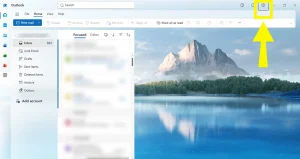
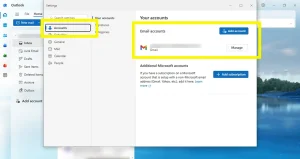
- Go to Accounts and select Email accounts.
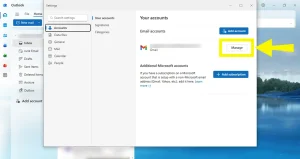
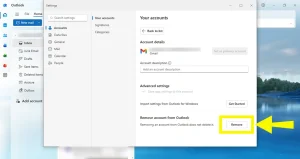
- Click Manage next to the email account causing the error.
- Select Remove to remove the account from Outlook.
- After that, select Add Account and sign in again.
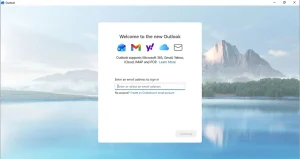
- If Outlook asks for manual details, enter the server names, ports, encryption methods, and authentication information supplied by your email provider.
- Lastly, send a test email and check whether the error is fixed.
Before removing the account, make sure that important emails are available through webmail or are backed up, especially if the account uses POP or stores messages locally.
4. Update Microsoft Outlook
An outdated version of Outlook may create compatibility issues with current server security requirements. To update Classic Outlook, follow the directions described below –
- At first, open Microsoft Outlook.
- Tap the File option.
- Select Office Account or Microsoft 365 Account.
- Tap Update Options.
- Select Update Now.
After completing the update, restart Outlook and check whether the issue is fixed. You should also install available Windows updates because updates may include security and compatibility improvements.
5. Check Your Internet Connection
A weak or unstable internet connection can interrupt communication between Outlook and the mail server. Try the following steps:
- Check whether other websites are opening properly.
- Restart your Wi-Fi router if required.
- Connect the computer to another stable network.
- Open Outlook again and try to send or receive an email.
- Make sure that the email server is not temporarily unavailable.
6. Check Antivirus and Firewall Settings
Security software can sometimes interfere with Outlook’s encrypted email connection. If Outlook displays the error after installing or updating antivirus software, check whether the email-scanning feature is affecting the connection.
Do not leave antivirus or firewall protection disabled permanently. If you temporarily test the connection, enable the security software again immediately and contact your antivirus provider if it is blocking Outlook.
How Can I Check Whether the Email Server Is Working?
To check whether the issue is related to the email server, open your email provider’s webmail page, such as Gmail or Outlook.com, and sign in to your account. If webmail is also unavailable, the issue may be related to the account, password, email provider, or mail server. Check the provider’s service status or contact its support team.
If webmail works properly but Outlook continues to show error 0x800CCC1A, check the Outlook account settings, encryption method, port numbers, and authentication method again. If Outlook is still unable to connect to the mail server, read this guide on how to fix Outlook cannot connect to server errors.
Frequently Asked Questions
What does Outlook Error 0x800CCC1A mean?
Outlook Error 0x800CCC1A generally means that the encryption method selected in Outlook does not match the encryption method supported by the email server. It can also occur because of incorrect server settings, port numbers, or authentication requirements.
What is the correct IMAP port for Outlook.com?
For Outlook.com, Microsoft lists outlook.office365.com as the IMAP server, port 993, and SSL/TLS encryption. Microsoft also lists OAuth2 or Modern Authentication for authentication.
Should I use SSL or TLS for IMAP?
Use the encryption method recommended by your email provider. For many modern IMAP accounts, SSL/TLS is used with port 993. However, do not select a method only because it worked for another email account.
Can incorrect SMTP settings cause error 0x800CCC1A?
Yes, incorrect SMTP server details, port numbers, encryption methods, or authentication settings can prevent Outlook from connecting properly. Check the incoming and outgoing settings with your email provider.
Why can’t I find the “Account Settings” option to change ports?
If you cannot find the “File” menu or the traditional “Account Settings” option, you may be using New Outlook instead of Classic Outlook. The location and availability of account settings can differ between the two versions. Open Settings, go to Accounts, and select Email accounts to manage the account.
Can I manually change IMAP and SMTP ports in New Outlook?
In New Outlook, manual server-setting controls may not be available for an existing account. If you cannot edit the IMAP or SMTP details, remove the account from Outlook and add it again. If Outlook asks for manual details, enter the server names, ports, encryption methods, and authentication information supplied by your email provider.
Can I disable encryption to fix this Outlook error?
Disabling encryption is not recommended as a permanent solution. First, check the correct secure settings provided by your email service and select the matching port and encryption method.
Conclusion
By following the above-mentioned steps, you can fix Outlook Error 0x800CCC1A IMAP Server Encryption in many cases. First, identify if you are using Classic or New Outlook. Check the IMAP and SMTP server settings, port numbers, and encryption method provided by your email service. After that, update Outlook, check the internet connection, and restart the application.
Do not disable secure encryption permanently or use random server settings. If the issue remains, first check this guide on how to resolve Outlook sync issues, or contact your email provider or administrator for the correct IMAP, SMTP, SSL/TLS, and authentication details.
This article is for general information and does not represent Microsoft or any email service provider.